
A logo is used everywhere. Every business person needs to use their logo on different platforms. So, it’s best option to store the logo in Vector format. Importantly, you need to export the logo in a suitable vector format.
Many beginners are confused about how can I export a vector logo from Illustrator. Don’t worry, we will show you how to save a logo in vector format. You’ll learn how to prepare your Illustrator logo.
What Are Common Vector Logo Formats?
Different types of Vector Logo Services are available. SVG, EPS, AI, and PDF are 4 main vector file formats. Each format has a different purpose. So, exporting a logo isn’t a random format to choose.
To use the suitable vector logo format, you have to know the purpose of those formats. AI is Adobe Illustrator’s native format. Many printers and designers ask for the AI file.
It is also known as the master file for vectors. Using AI files, designers can easily customize the design. SVG is another common Vector logo format. It is used for websites and digital applications.
EPS is another vector format supported in professional design. Also, vector-based PDF is a common vector file format.
So, you know about the 4 common vector formats. Before you can export a vector logo from Illustrator, you need to prepare the file properly. Here’s the process.
How Can I Export A Vector Logo From Illustrator?
Is your artwork ready to export? You can export it in any format you need. If you are thinking about how to save a logo in vector format, the process is similar.
Step 1: Open Your Logo in Illustrator
Open the logo file containing your finished design. Before exporting, make sure you’re working with the final version. Sometimes beginners make the mistake of exporting the drafts.
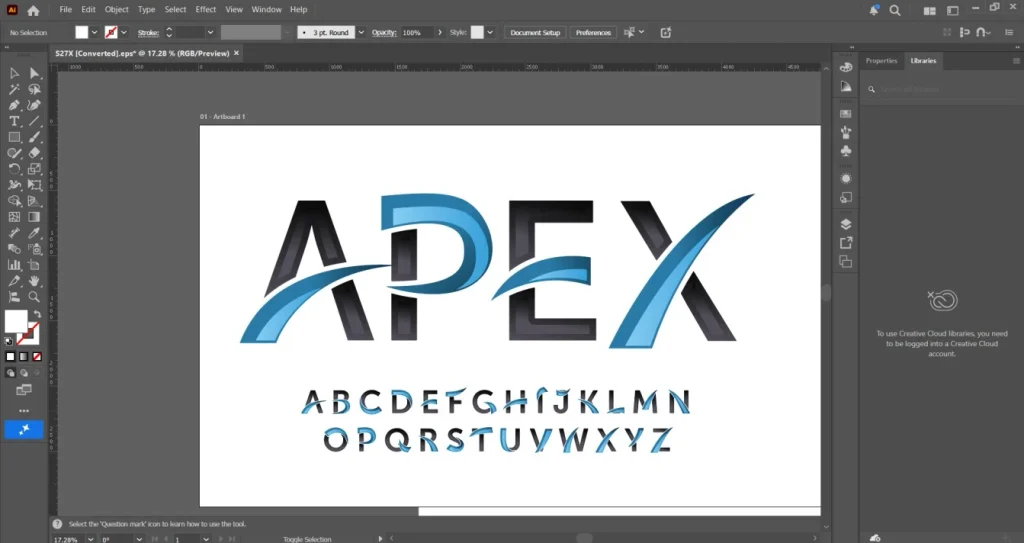
Step 2: Check the Correct Artboard
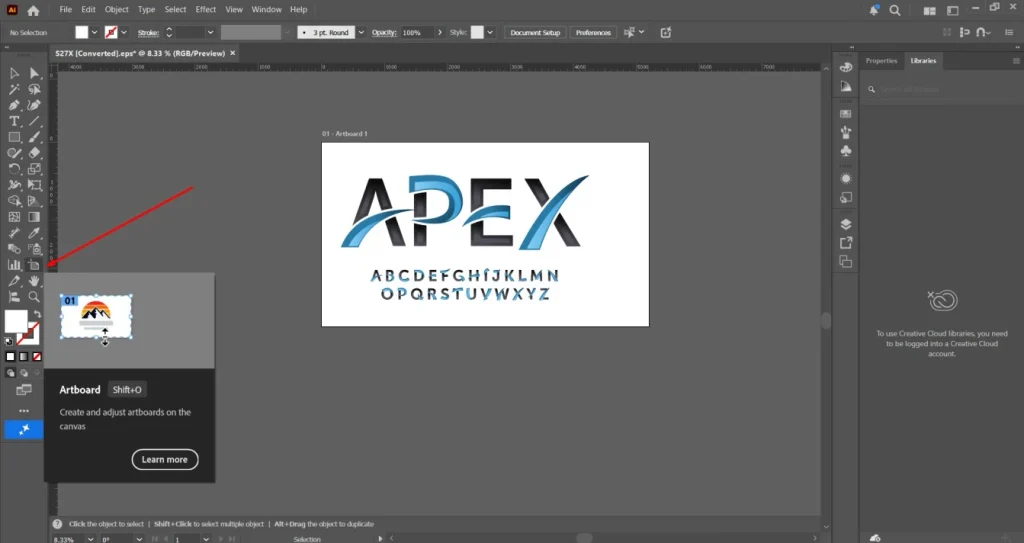
Does your document contain multiple artboards? You need to identify the specific artboard containing the logo. You can use the artboard tool for that.
Step 3: Go To Export
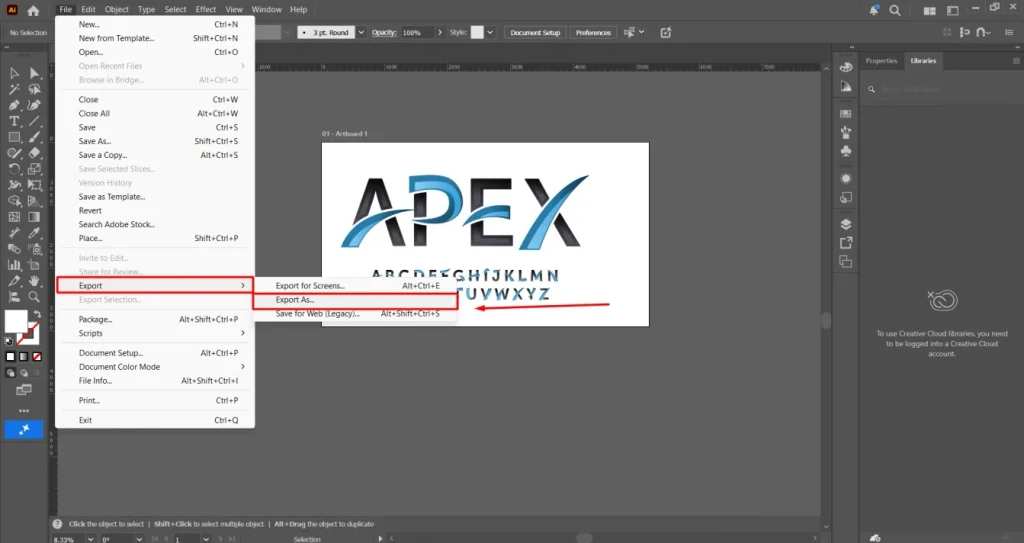
Illustrator provides export options through its file menu. Go to the File option and choose Export to access the option. You will get the Export As option there.
You’ll be able to choose an appropriate format. You can configure the export settings.
For the editable Illustrator file, you have to use the save options.
Step 4: Choose Your Vector Format
This is the most important part. You need to choose the format according to how the logo will be used. You will get those vector formats in Illustrator.
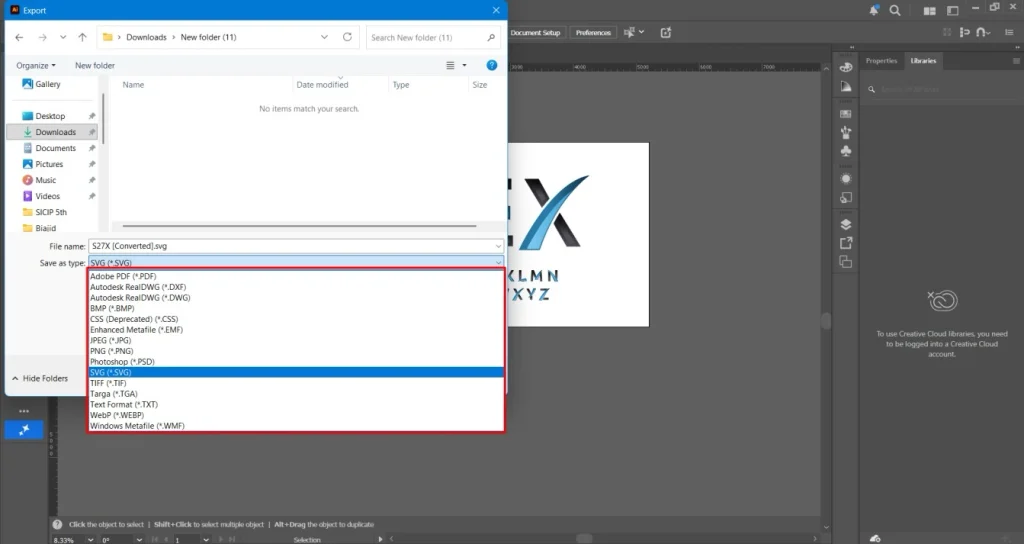
If you choose the PNG or JPG option, your logo won’t be a vector file. It will be converted to a raster graphic. So, make sure that you choose the right vector format.
How to Prepare Your Logo Before Exporting?
Before exporting, you should spend a few minutes checking the artwork. Perfect Raster To Vector Conversion export needs a clean Illustrator file. You should follow the steps below.
Check Your Artboard
Make sure the correct logo is positioned on the appropriate artboard. In some vector documents, several logo versions are located outside the artwork.
You should check that you’re exporting the final file to contain. The Artboard tool helps to review the exact area that will be exported.
Check Colors
Think about where the logo will be used. For digital applications, RGB color mode is appropriate. For professional print, CMYK will be required for the production process.
You can prepare separate color versions for different uses. However, you can change color from the AI file later on.
Convert Text to Outlines
Fonts create problems when a logo is opened on another computer. If the recipient doesn’t have the same font installed, editable text will not appear properly.
For a final production version, you need to outline the text. Select the text and choose “Create Outlines” from the Type option. This converts the lettering into vector shapes.
Check Your Paths and Shapes
Unwanted anchor points can ruin your vector file. Before exporting a vector logo from Illustrator, you should zoom into the logo to look for rough curves.
If there are any open paths, those paths should be closed. You should get rid of the unnecessary elements. Take a final look before exporting.
Wrap Up
You can’t make a random choice for exporting a vector logo from Illustrator. Hopefully, you have got the concept clear on how can i export a vector logo from Illustrator.
The right preparation and format make a big difference in vector quality.
If you don’t have the vector file, you can get our raster-to-vector conversion service.
We will convert your old logo into a perfect vector file, maintaining the greatest details. Our service price is also affordable. Contact us now to discuss your project.
FAQ’s
Can I export a vector logo from Illustrator?
Adobe Illustrator is the industry-standard application for exporting vector graphics. So, you can export a vector logo from Illustrator.
Which format is suitable for logo SVG or PNG?
If you need a vector logo for a digital application, you should export your logo as SVG. PNG is a raster format. It is suitable for fixed-size images.
How to export a logo without losing quality?
You need to export the logo to an appropriate vector format. You can save the logo as AI, SVG, EPS, or PDF. Avoid rasterizing the logo to save it without losing quality.